

How to Schedule Staff in Google Calendar [+ Better Scheduling Alternatives]

Employee scheduling is a large priority for any business that deals with changing scheduling needs outside the 9 to 5 world. A well-organized employee scheduling process allows the business to thrive, boost employee morale, and save the company money on labor costs.
Many organizations, especially small businesses, initially turn to accessible tools like Google Calendar to manage their scheduling needs.
The goal by the end of this article is to equip you with the insights into how to create staff schedules in Google Calendar, while showcasing the common limitations, complaints we hear, and better scheduling solutions depending on your situation.
Ready? Let’s jump in.
Table of Contents
- Can you use Google Calendar to schedule employees?
- Capabilities & Limitations
- Is Google Calendar designed to schedule employees?
- Set up Google Calendar for employee scheduling
- Can I assign Tasks in Google Calendar?
- How do Employees set availability?
- Other Challenges
- The Better Scheduling Alternative: Evolia
- Other Major Benefits of a Workforce Management Software
Can you use Google Calendar to schedule employees?
Yes, you can use Google Calendar to schedule employees. Share a calendar with employees and add events as shifts.
While it’s possible, it’s important to understand the capabilities and limitations of Google Calendar when scheduling staff.
Google Calendar is typically a work calendar for scheduling internal or external meetings and not shift scheduling and tracking. And that is where the major limitations or complaints come in.
Capabilities & Limitations Using Google Calendar for Employee Scheduling
It’s important to understand the limitations of Google Calendar, so you don’t run into challenges in a few weeks when it’s implemented. Watch out for these limits.
Manual Event Creation for Shifts: For managing shifts for each employee, you or another team member will have to manually create events for a shift and invite the employee to the event. And then add comments or further details in the event description.
Shared Calendars: In order for staff to see their shift details from the Google Calendar events, you’ll also need to make sure the calendar that these events are created on is shared with the right staff members. This shared calendar can house all the shifts, so if it’s mismanaged or altered, it can cause confusion for all staff.
Privacy and Access Control: Google Calendar allows you to control who can see and edit the calendar. However, if you’re sharing a single shift calendar with multiple people, there could be privacy issues related to other staff having access to shift information for the whole company or department.
Event Updates: Any changes made to the calendar or specific events are updated in real-time for those that have access to the shared calendar. Making it easy to sync changes. Unfortunately, a major limitation is the required manual efforts for any updates, shift changes, time changes, shift swaps, etc.
Lack of Integrations: Google Calendar doesn’t offer much for integrations with other HR software or payroll systems. If you’re relying on time-clock punches for payroll and there are differences in the employee’s schedule, this could cause headaches for both the worker and payroll staff.
Scalability: If you’re scheduling anymore than 1 to 2 staff members, Google Calendar will have scalability issues. The need for continuous manual updates and intervention required can take up several hours in a workday.
Complex Scheduling Needs: For businesses with complex scheduling needs, such as those requiring compliance with labor laws or handling numerous part-time and full-time workers with varying availability, Google Calendar can easily take up to 10-15 hours a week to manage.
Shift Swaps: While employees can informally arrange shift swaps and notify managers for approval, Google Calendar does not have a dedicated feature to facilitate or track these swaps.
Time-off Tracking & Management: There’s no built-in system for managing time-off requests, tracking leave balances, or integrating these considerations directly into the scheduling process.
Don’t get caught using the wrong tools
While it is possible, it’s not an ideal solution. Think of it this way…
While a butter knife can fit into the slot of a screw and turn it, it’s not designed for that purpose. Doing so risks damaging the screw, the knife, or even the person using the knife.

Is Google Calendar designed to schedule employees?
Google Calendar is not designed for employee scheduling. The main use for G-Cal is to be a general digital-based calendar tool for meetings, events, and appointments. Think of it as your personal calendar to track your kids soccer appointments or for corporate work to schedule internal meetings and client calls.
While it offers features that can be adapted for basic employee scheduling needs, such as creating shared calendars and sending event invites, it lacks the specialized functionalities that are typically required for comprehensive employee schedule management.
It can serve as a supplementary tool alongside other workforce management software like Evolia.
How do I set up Google Calendar for employee scheduling?
Google Calendar, while not specifically designed for complex employee scheduling needs, can still be utilized for basic scheduling tasks. Here’s a step-by-step guide to set it up:
1. Create a Google Account for Your Organization
Begin by setting up a Google Account and scheduling an email address for your business, if you don’t have one already. Ideally, think about using Google Workspace to have a more secure account.
2. Open your Calendar Workspace for Scheduling
Log into your scheduling email account. Click on this link and open Google Calendar.

3. Set Up Employee Shifts
Click on the desired date and time on the calendar to create an event.

Title the event with the shift time or employee’s name, depending on your scheduling conventions that you set.
To add the employee, use the “Guests” section to enter the email addresses of the staff members you are scheduling for that shift. They will receive an invitation to the event, which they can accept to add it to their personal Google Calendar.
Include any necessary details in the description, such as location (if multiple brick & mortar), or specific tasks to be completed during the shift.
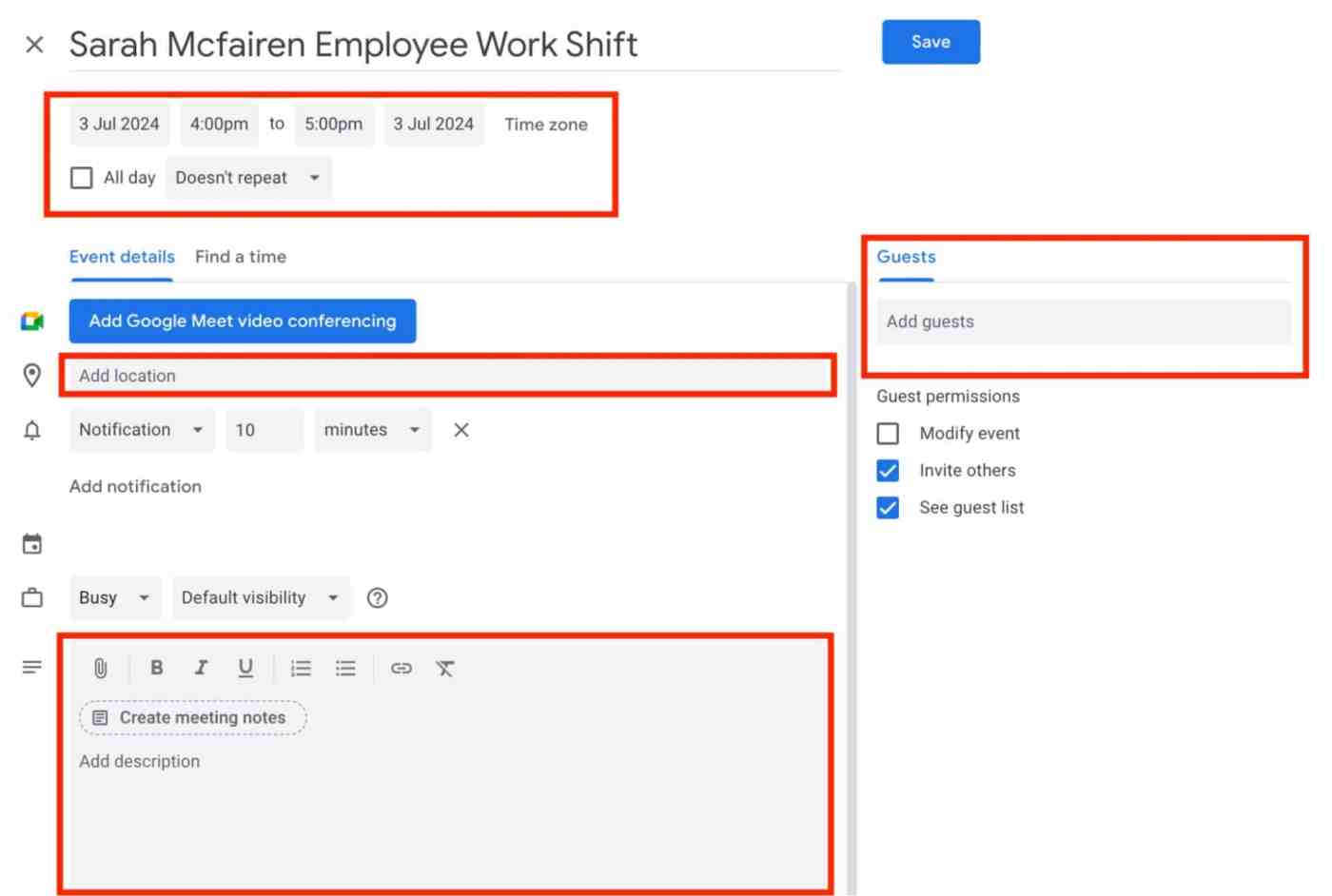
4. Repeat for Additional Shifts
Repeat step 3 for each shift you need to schedule, ensuring you’re staffed up for the coming week or month and employee availability is adhered to. You can use the “Duplicate” feature for recurring shifts to save time.

If there are recurring shifts, use the recurring schedule feature to make it appear on a schedule.
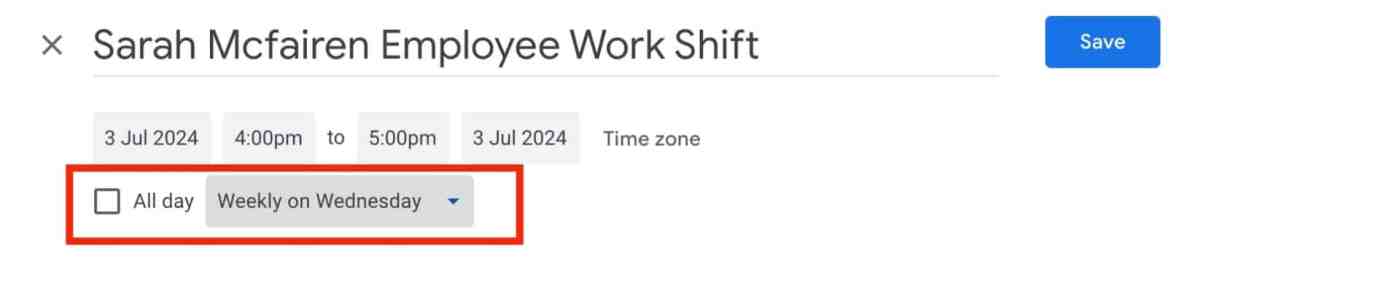
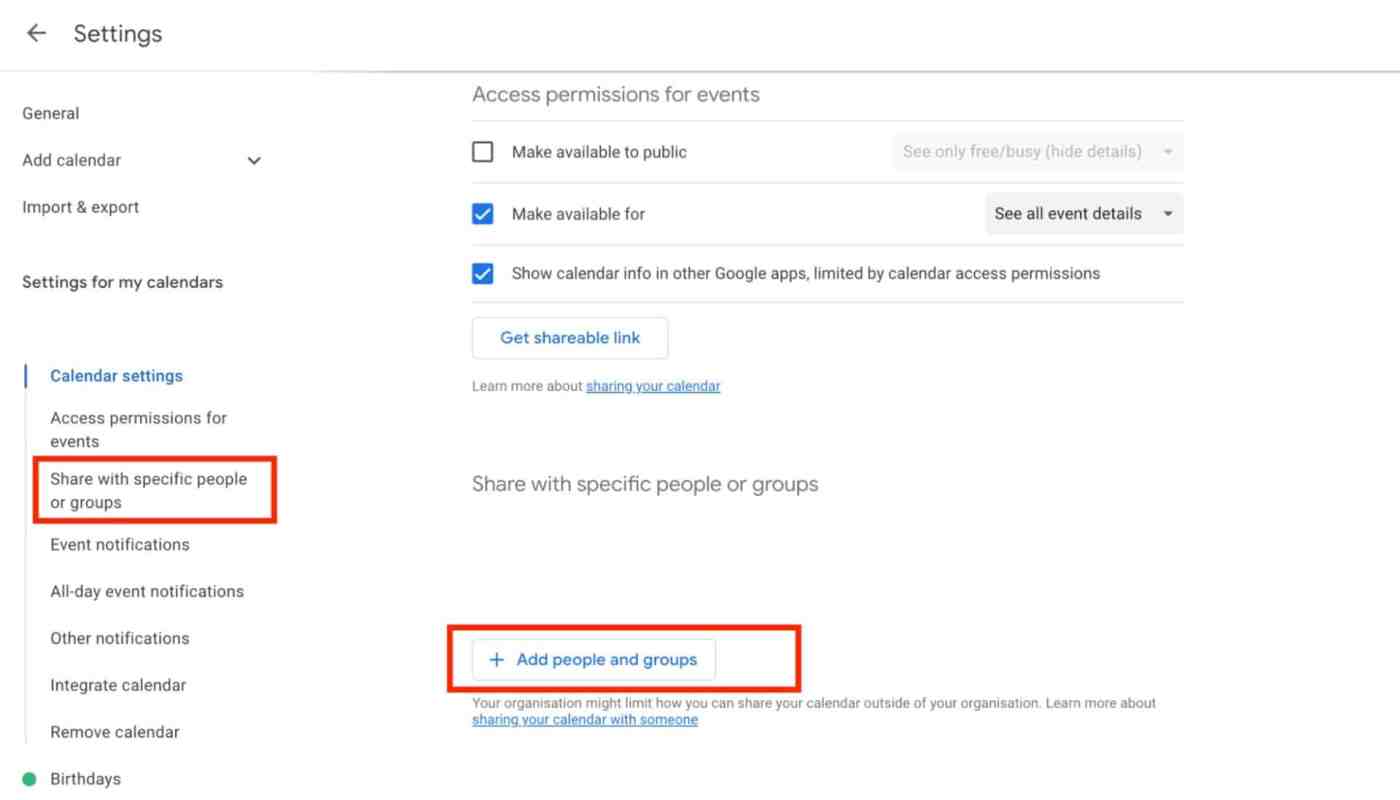
5. Share the Calendar
Once you’ve added the shifts, share the calendar with your team. Go to “Settings and sharing” for the specific calendar you created.
Under “Share with specific people,” add the email addresses of your employees or managers who need access to the calendar.
Choose the appropriate permission level (typically, “See all event details” is sufficient for employees).
6. Maintain and Update the Schedule
This is where the 5+ hours of work may come in when using Google Calendar. Make sure to regularly update the calendar as shifts change. Encourage staff to have their personal calendar connected on their phone so they can see their shifts anywhere.
7. Optimize Meetings Communication
Consider creating a separate, shared calendar for team meetings or events. While it can start to create a very compact view within Google calendar, this will help organize all meetings if you choose to use this route.
Continuous Usage
Using Google Calendar for employee scheduling offers a basic solution for very small teams with simple scheduling needs. However, mix in a shift swap or varying availability for more than 1-2 staff, consider investing in a workforce management software.
You don’t want to have to hire a schedule manager just to manage a Google Calendar like this:

Recommended Reading: 3 Reasons to Make the Switch From Manual to Automated Scheduling
Can I assign Tasks in Google Calendar?
No, you cannot assign tasks in Google Calendar. The tool does not allow you to assign tasks to different employees. Setting up tasks only works for the calendar owner as you cannot assign others.
How Task Management Software Overcomes These Limitations
Using an all-in-one Workforce Management software can easily overcome these limitations of task management and assignment.
Assign one-off or recurring tasks for specific shifts, regardless of who is working that shift. So you can streamline task management assignments.
And with built in notifications and chat functionality within the Evolia app, staff and managers can stay-up-to-date with new tasks and task completions.
How do Employees set availability?
Yes, employees can set their availability in Google Calendar. However, this does require that employees share their personal calendar with you. While staff can avoid providing their other event details, this still could be a major privacy concern that would allow the scheduling manager to see when time is blocked in employee calendars. Which is a major limitation when compared to automated scheduling software.
Employees can share their availability calendar with their manager or the entire team by going to “Settings and sharing” for that calendar and adding the email addresses of their coworkers or supervisors under “Share with specific people.”.
How Evolia’s Scheduling Software Overcomes These Limitations
Evolia’s auto scheduling software is designed specifically for workforce management and addresses all the limitations of using tools like Google Calendar for setting employee availability and scheduling.
Free up your time by allowing employees to self-manage their schedules. Give them the power to bid on shifts, set their availability, and clock in, all through Evolia.
Recommended Reading: Scheduling Performers with Precision: Medusa Entertainment Meets Evolia
Other Challenges with Google Calendar
Managing Employee Permissions
A major challenge that Google Calendar presents is the difficulty in setting different permission levels for users. If there are different levels of management and permissions, it can be inefficient to rely on using multiple different Google Calendars internally just to bypass permission challenges.
Managing Shift Swaps
Shift swaps already present a challenge for HR teams and scheduling managers if there isn’t automatic scheduling software in place. Allowing shift swaps is essential to any thriving workplace that values their staff. People want flexibility and shift swaps provide that. Managing these swaps through Google Calendar can be cumbersome. Once a shift swap request is received, you should have to:
- Open Google Calendar;
- Find the appropriate shift;
- Change the “Guest” field to the new worker;
- Confirm and Update;
- Update and subsequent shifts for the shift trade;
- Confirm new employee hours are in line with labor regulations;
The platform does not support a streamlined process for proposing, approving, and updating shift swaps, making it reliant on manual intervention by managers or HR personnel. Keep that in mind if you want to allow shift swaps.
No Time Clocking
Time and Attendance tracking can be a crucial element to aligning the actual hours that staff work with their payroll. Accurate time tracking is crucial for compliance and making sure employees agree with what they are paid. If you only use the Google Calendar schedule to dictate hours paid, this won’t account for staff that arrive early or late for their shifts.
Google Calendar does not have built-in time clocking functionality, making it difficult to use for comprehensive time tracking.
Recommended Reading: The Time Clocking Guide: Best Practices For Your Workforce
Manual & Error Prone Payroll Sync
Google Calendar, being primarily an event scheduling tool, does not offer direct integration with payroll systems, requiring HR managers to manually transfer data from the calendar to payroll software.
It’s estimated that each error costs a business approximately $291 to remedy. Have a few of these every month and you’re running up a lot of payroll expenses!
Accurate and Efficient Schedule Management
Overall, the major challenge presented with using Google Calendar for employee scheduling is the inefficiencies and accuracies compared to the better alternatives. Even if there are only a few staff members, this creates further complications when staff leave and you need to onboard new staff. And employees won’t stick around if the schedule is consistently unfair.
The Better Scheduling Alternative: Evolia
There is a better way! Schedule employees in Evolia in 3 easy steps:
Now for the easy way, with Evolia. Automate and streamline several of those steps we detailed above, while still having complete control over the schedule and saving countless hours a week (how can it get better than that).
Step 1: Gather employee information
Once you’ve created your account, head over to the Employee tab and click the + icon to find the options for gathering employee data.
There are two easy ways to do this:
- Add them manually or,
- Import a list of employees with their info.
Add or import details like first name, last name, email, phone, positions, locations, employment status, employee ID, Hourly Wage, Max hours, Hire Date and more. Employees can also receive an invite via email or SMS when you’re setting up their profile.

Step 2: Set the Shifts and Publish
Click on the day column for the employee and row that you want to schedule. This will bring up many different options that allow for future automation with scheduling. Fill in information like position, location, break, shift premiums, on call shifts, variable endings and more.
Once the shifts are set, the schedule is published and shared with the staff, typically via the software’s communication tools, ensuring that all team members have immediate and easy access to their updated work schedules.
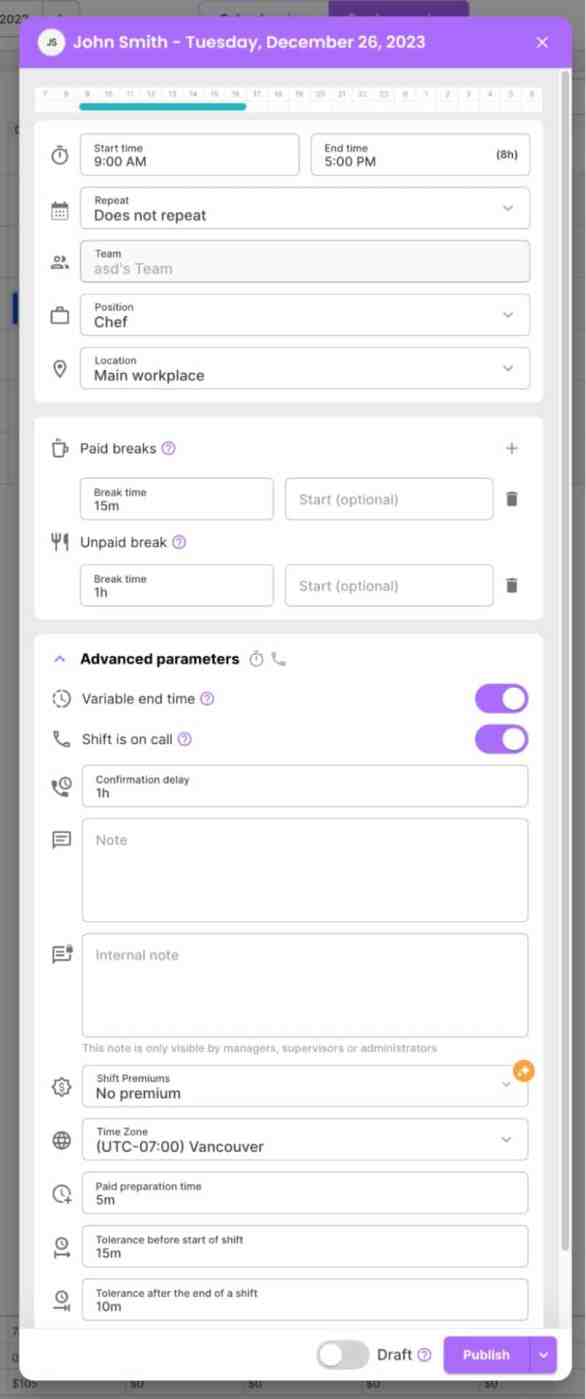
Step 3: Automate the Rest
Automate shift swaps, availability, schedule updates and more. Evolia takes over to handle ongoing scheduling tasks. This includes updating schedules based on real-time changes, such as shift swaps or leave requests. Automation ensures that schedules remain optimized to your business without constant manual intervention, saving significant managerial time and effort.
Save even more time so you can focus on more important parts of your business.
Sync your Evolia Schedule to Google Calendar
Other Major Benefits of a Workforce Management Software
Scheduling Employees with Auto Scheduling Tools
Evolia’s scheduling feature automates employee scheduling by matching available shifts with employees based on their preferences, skills, and availability. This software simplifies the scheduling process for businesses, ensuring optimal staff allocation, labor budgeting, and reducing manual scheduling efforts. If you run 24/7 schedules for staff, this is even more important as you cannot have errors with missed shifts.
Track Time and Attendance and Sync with Payroll
Evolia’s time and attendance feature streamlines tracking for employee work hours and attendance, ensuring accuracy and efficiency. It gives your employees the control to clock in and out for their shift times, while automatically tracking and pushing that labor data to a central view and payroll for real-time insights.
Monitor labor costs without crunching numbers or breaking spreadsheets. Like most businesses, the labor costs associated with running and operating usually account for a large portion of your ongoing investment. With Evolia’s Workforce Management Software, you can forecast your labor costs based on your schedule, and better manage changes as they arise.
Avoid manually crunching numbers or updating spreadsheets that eventually break over time.
Manage Tasks Holistically Without Pen and Paper
Effective task management features help your company streamline task workflows by assigning, tracking, and managing tasks from a central software. This feature allows managers to delegate tasks to employees based on their skills and availability, follow specific task workflows and ensure tasks are allocated and completed properly.
Final Thoughts
While you can accomplish your goal of scheduling staff with Google Calendar, using the Free Version of Evolia will take you way further with time savings and scheduling automation. Offering advanced scheduling functionalities, integrated availability management, real-time communication, and valuable compliance and reporting tools.
So, what are you waiting for? Ditch Google Calendar and try Evolia today.
Other Scheduling Resources
- How to Schedule Employees Effectively, Step by Step Guide
- Retail Scheduling: Modern Tips Beyond Boring Spreadsheets and Snapchat
- 10 Best Practices to Build Schedules Like a Pro With Evolia
- Complete Guide to Nurses’ Schedules in Healthcare
Recruit, Schedule & Manage your Workforce FREE
Evolia’s all-in-one Workforce Management Platform allows you to recruit, schedule, and manage your employees, saving you countless hours in admin work.
Featured Articles


See Evolia in action. Request a Demo!
Let our experts show you how we can streamline your scheduling and optimize your HR operations.
Get a personalized demo to:
- Automate scheduling and time & attendance.
- Find the workers you need and optimize your internal resources
- Integrated with most HRIS and ERP softwares
We make it work for you!